TIX · Volume 6
Build It Yourself
A bench walkthrough of both collected TIX builds — pick one, solder it, see first light
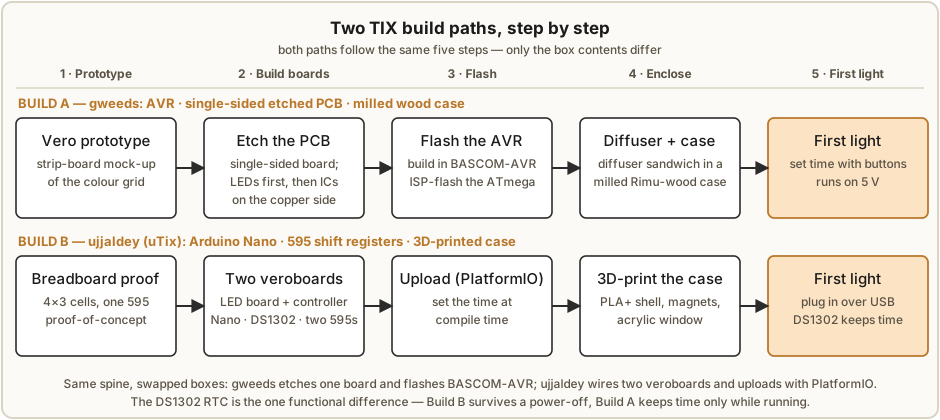
This is the volume where the TIX clock stops being a principle and becomes an object on your bench. The engineering volumes have already done the hard thinking — the count-the-cells encoding (Vol 2), the LED display and its colour fields (Vol 3), the two ways to drive the grid (Vol 4), and the timebase, randomiser and firmware (Vol 5) — so this volume’s job is narrow and practical: take one of the two complete builds this hub holds, and walk it from a bag of parts to a lit, ticking display. We thread both collected builds in parallel so you can read the one you mean to build and skim the other, but you only need to do one. The deep “why” lives in Vols 3–5; the case and the all-important diffuser stack live in Vol 8; the full side-by-side teardown of the two designs is Vol 9. Here we solder.
Neither build can hurt you. Both run from 5 V over USB, every LED sits behind a current-limiting resistor, and there is no high voltage anywhere in a TIX clock — unlike the nixie or scope clocks elsewhere in this hub. The only cautions are the ordinary ones of small electronics, and they are gathered in §6.7.
6.1 Choosing your build
There are two worked builds, and the choice is almost entirely about what is already on your bench and which microcontroller world you live in. Both produce the same 27-LED, yellow/red/blue/green, count-the-cells face.
- Build A — the gweeds “DIY TiX Clock” (Guido Seevens, Instructables 2011). An AVR microcontroller programmed in BASCOM-AVR BASIC, scanning a transistor-multiplexed LED matrix, on a single-sided home-etchable PCB that carries controller and display on one board. Time is set with physical buttons. The classic case is milled wood with lathe-turned buttons (Vol 8). Choose this if you don’t have a 3D printer and like working in wood, if you are comfortable with (or want to learn) the BASCOM/ISP toolchain, and if you enjoy etching a board.
- Build B — the ujjaldey “uTixClock” (Instructables). An Arduino Nano with a battery-backed DS1302 RTC, driving the grid through two 74HC595 shift registers, on two stripboard/veroboard boards. Firmware goes up through PlatformIO (or the Arduino IDE). The case is 3D-printed PLA+ held with neodymium magnets (Vol 8). Choose this if you have a 3D printer and prefer the Arduino ecosystem, and especially if you want the time to survive a power cut — the DS1302’s coin cell keeps it running through power-off, which the bare-AVR gweeds build does not do.
Table 1 — 6.1 Choosing your build
| Decision | Build A — gweeds DIY TiX | Build B — ujjaldey uTixClock |
|---|---|---|
| Microcontroller | AVR (ATmega16 in schematic) | Arduino Nano (ATmega328) |
| Firmware language / toolchain | BASCOM-AVR BASIC, ISP flash | C++ via PlatformIO / Arduino IDE |
| LED driver | Discrete transistor rows + transistor-array columns | Two 74HC595 shift registers |
| Timebase | MCU crystal only (no power-off backup) | DS1302 RTC + coin cell (survives power-off) |
| Board(s) | One single-sided etched PCB (ctrl + display) | Two veroboards (display + controller) |
| Time setting | Physical buttons | Compile-time (no button UI in shipped build) |
| Default case | Milled wood, lathe-turned buttons | 3D-printed PLA+, magnets, acrylic window |
| Best if you have | A wood mill/lathe, like etching | A 3D printer, like Arduino |
Jeff’s bench note. Jeff’s lab has multiple 3D printers, a CNC, a laser cutter, and a full electronics bench, so the usual deciding factor — “can I make the case?” — doesn’t constrain him: he can print the uTix enclosure, or CNC-mill / laser-cut the gweeds wooden case and its square diffuser grid, with equal ease (Vol 8). For him the choice comes down to toolchain taste and whether he wants the DS1302’s power-off timekeeping. The rest of this volume assumes either is fair game.
6.2 The driver in one figure (so the BOMs make sense)
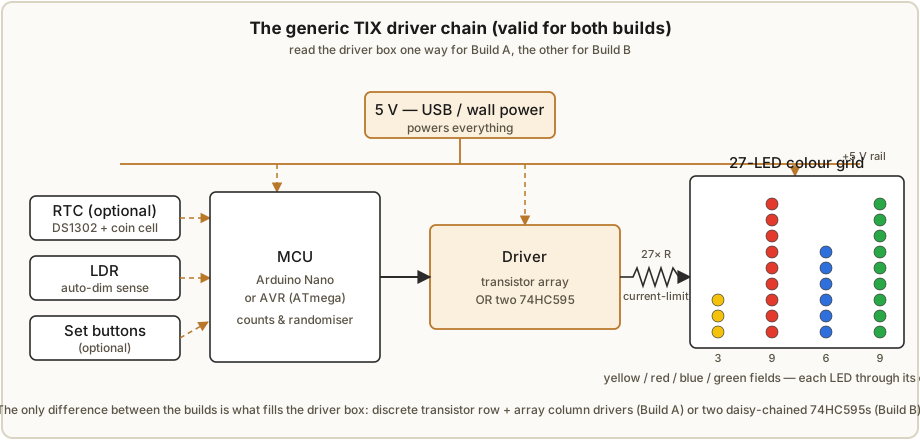
Both builds are the same block diagram with one box swapped. A microcontroller computes the four digit counts and a random arrangement to reach them each minute (Vol 5), a driver turns that into LEDs actually lit, and the 27-LED colour grid displays it — every LED in series with a current-limiting resistor (Vol 4). The only difference between the builds is what fills the driver box: gweeds uses discrete transistors (row drivers) plus transistor arrays (column drivers) to scan a multiplexed matrix; ujjaldey uses two 74HC595 shift registers clocked from three Nano pins to drive the same kind of grid. Read the driver box one way for Build A, the other for Build B.
6.3 Build A — the gweeds DIY TiX, step by step
6.3.1 Bill of materials
The deliverables ship as tixclock.zip — BASCOM-AVR source, the schematic, and the
single-sided Eagle PCB (silkscreen “Colour Clock PCB Rev 2.1 / Designed by Guido Seevens
2008”). Quantities below follow the schematic and the 3/9/6/9 grid; treat the column-driver
choice as flexible (the transistor arrays are a convenience — discrete transistors work too).
Table 2 — 6.3.1 Bill of materials
| Qty | Part | Role / notes |
|---|---|---|
| 1 | AVR microcontroller (ATmega16 in schematic) | Keeps time, computes counts, scans the matrix |
| 1 | Crystal + 2 load caps | MCU timebase (no power-off backup — see Vol 5) |
| — | Row driver transistors (one per scanned row) | Switch matrix rows; discrete NPN/PNP per schematic |
| — | Column driver transistor array(s) (e.g. ULN-class), or discrete transistors | Sink/source the matrix columns; arrays optional |
| 3 / 9 / 6 / 9 | 5 mm LEDs — yellow / red / blue / green | The four colour fields; 27 LEDs total |
| 27 (or per-line) | Current-limiting resistors | Size per LED colour Vf and duty (Vol 4) |
| several | Push buttons | Set hours/minutes (physical set UI) |
| 1 | Single-sided PCB (home-etchable) | Combines controller + display on one board |
| 1 | 5 V USB supply / connector | Power; no high voltage |
| — | Headers, ISP header, wire, sockets | Assembly + in-system programming |
Exact transistor types, resistor values and the precise matrix wiring are the engineering of
Vol 4; the schematic in tixclock.zip is authoritative for part numbers.
6.3.2 Vero prototype first, then the etched PCB
Seevens built the clock twice: first on Vero strip board to prove the circuit and the firmware, then as the single-sided Eagle PCB once it worked. That is the recommended order for you too — get the matrix scanning and the counts correct on stripboard, where a mistake is a cut track and a jumper, before you commit to copper. The PCB’s whole appeal is that it is single-sided and combines controller and display on one board, so it is realistically home-etchable (toner-transfer or photo-resist) without plated-through holes.
6.3.3 The critical assembly order — LEDs FIRST
This is the one step on Build A that bites people, so it gets its own paragraph. On the home-etched single-sided board the layout is unusual: the LEDs mount as ordinary through-hole parts on one side, while the ICs and other components mount on the COPPER side. The consequence is that the AVR chip physically covers some of the LED solder pads. If you populate the chip first, you can no longer reach those LED joints with an iron. Therefore:
Solder the LEDs FIRST, before any IC. Seat and solder all 27 LEDs, confirm their orientation, then fit the AVR and the remaining components on the copper side. There is no graceful recovery from soldering the chip first — you would have to desolder it to reach the covered LED pads.
Double-check LED polarity before you commit the iron; on a multiplexed matrix a single reversed LED is a dead cell that is tedious to find later (§6.6).
6.3.4 BASCOM-AVR build and ISP flashing
The firmware is BASCOM-AVR BASIC (Vol 5 walks the randomiser and the set logic). Open the
source from tixclock.zip in the BASCOM-AVR IDE, compile to a .hex, and flash it to the AVR
in-system through the ISP header using your programmer (USBasp, AVRISP mkII, or BASCOM’s
own programmer support). Set the fuses for the external crystal as the schematic/source
require — getting the clock source fuse wrong is the usual “it compiled but the chip is dead”
cause. There is no bootloader assumed here; this is a straight ISP part.
6.3.5 First light
Power the board from 5 V USB. On first boot you will see the four colour fields light to some count; use the physical buttons to set the hours and minutes (the set logic is Vol 5). Within a minute you should see the random re-roll: the same counts, rearranged cells. If it lights but reads wrong, jump to §6.6.
6.4 Build B — the ujjaldey uTixClock, step by step
6.4.1 Bill of materials
This is the author’s parts list verbatim, plus the enclosure parts (the case itself is Vol 8).
Table 3 — 6.4.1 Bill of materials
| Qty | Part |
|---|---|
| 1 | Arduino Nano |
| 1 | DS1302 RTC module |
| 3 / 9 / 6 / 9 | 5 mm LEDs — Yellow ×3, Red ×9, Blue ×6, Green ×9 |
| 1 | Both-sided dotted veroboard |
| 1 | Stripped veroboard |
| 2 | 74HC595 shift register (16-pin) + IC base |
| 1 | Resistor 10K |
| 3 | Resistor 33Ω |
| 1 | LDR |
| 1 | USB cable |
| 1 | On-off switch |
| — | Header pins; jumper wires |
| — | 3D-printed enclosure; 3 mm neodymium magnets; quick-fix glue; transparent paper; black acrylic |
The single 10K is the LDR’s divider partner (auto-dimming, Vol 4); the three 33Ω resistors are the per-line current limiters for the shift-register-driven grid. The transparent paper and black acrylic are the diffuser/window — Vol 8.
6.4.2 Breadboard the proof-of-concept first
ujjaldey did not start by soldering. The first step was a 4×3 LED matrix proof-of-concept on a breadboard, driven by a single 74HC595 — just enough to prove that a shift register can light an addressable grid before scaling to the full 27 LEDs and a second 595. Do the same: wire one 595 to a 4×3 block of LEDs, push a few patterns out of the Nano, and confirm you can light any cell you choose. This de-risks the whole driver before you commit two boards of soldering.
6.4.3 Build the two boards
The shipped clock is two boards:
- The LED display board — the 27 LEDs in the 3/9/6/9 colour layout on the both-sided dotted veroboard, wired as the matrix the 595s will scan, with the three 33Ω line resistors.
- The controller board — the Arduino Nano, the DS1302 RTC module, and the two 74HC595 shift registers (in their IC bases), the LDR + 10K divider, the on-off switch and the headers. The two 595s are daisy-chained (data out of the first into the second) and clocked from three Nano pins; ribbon/jumper wires carry the matrix lines over to the display board.
Socket the 595s rather than soldering them directly — it makes the ESD-sensitive CMOS parts swappable if one is damaged (§6.7).
6.4.4 Upload the firmware with PlatformIO
The firmware is C++. The author used PlatformIO inside VS Code (the Arduino IDE works just as well). Open the project, select the Nano environment, and upload over the USB cable. The firmware uses an RtcDS1302 library to talk to the clock chip (Vol 5).
6.4.5 Setting the time — at compile, not with buttons
This build ships with no button set-UI. The time is set the Arduino-sketch way: you
enter the current time in the source (commonly via the compiler’s __DATE__/__TIME__
macros or a hard-coded value) and upload, which writes that time into the DS1302; from then
on the battery-backed DS1302 keeps it running through power-off, so you only do this once.
If the displayed time drifts from real time at upload, it is usually the few seconds between
compile and the RTC actually latching — re-upload or nudge the source.
6.4.6 First light
Flip the on-off switch with the USB cable plugged in. The grid should light to the current counts and re-roll every minute. Because the DS1302 holds time, unplugging and replugging should bring it back at the right time, not reset to zero — that is the headline advantage of this build over gweeds (§6.6 if the RTC is not holding time).
6.5 First light — what “right” looks like
Whichever build you chose, a correct first light has three properties, and checking them in order tells you a lot:
- The right number of cells is lit per field — count them and read HH:MM (Vol 2). The positions are irrelevant; only the count carries the time.
- The four colours are distinct and all four fields are alive — yellow, red, blue, green, none of them dark.
- The pattern re-rolls each minute to a new random arrangement at the same counts (Vol 5). If the count is right but the arrangement never changes, the timebase is advancing but the randomiser isn’t being re-run — a firmware symptom, not a wiring one.
6.6 Troubleshooting table
Work from the symptom. Most first-light faults are one of these, and most are wiring or resistor choices rather than firmware.
Table 4 — 6.6 Troubleshooting table
| Symptom | Likely cause | Where to look |
|---|---|---|
| All LEDs dim | Series resistor too large, multiplex duty too low, or LED Vf marginal at 5 V | Resistor sizing + scan duty (Vol 4); raise duty or drop R within rating |
| A whole row/field dark | A driver fault: a row driver transistor (Build A), a dead 74HC595 output (Build B), or a broken matrix line | Reseat/replace the transistor or the socketed 595; ohm out the matrix line |
| Visible flicker | Refresh (scan) rate too slow | Speed up the multiplex loop in firmware (Vol 5); fewer cycles per scan |
| One cell stuck on | Short across that LED, solder bridge, or a latched driver output | Inspect that LED’s joints for a bridge; check the driver line for that cell |
| One colour unlit or weak | Per-colour Vf/resistor mismatch (blue/green Vf ≫ red/yellow) | That colour’s series resistor — size per its own Vf, not one value for all (Vol 4) |
| Single dead cell | Reversed or cracked LED | Polarity of that one LED (Build A: was it soldered before the IC covered it?) |
| Counts wrong but stable | Field-to-bit mapping or firmware count error | Firmware digit→count mapping (Vol 5); confirm matrix wiring matches the map |
| Pattern never re-rolls | Randomiser not re-run each minute, or minute tick not firing | Firmware minute loop / randomiser call (Vol 5) |
| Build B: RTC won’t keep time through power-off | Dead/absent DS1302 coin cell, or the 32.768 kHz oscillator not running (bad crystal/solder joint) | Replace the cell; reflow the DS1302 module’s crystal; confirm the module isn’t a known dud |
6.7 Safety and care — a 5 V build
There is no high voltage in a TIX clock, so there are none of the HV warnings that govern the nixie or scope builds in this hub. The cautions are the ordinary ones, and they are short:
- ESD-handle the CMOS chips. The 74HC595 shift registers (Build B) and the AVR (Build A) are static-sensitive. Touch a ground first, work on an anti-static mat if you have one, and use IC sockets so you never iron-heat the chip directly and can swap a zapped part.
- Don’t exceed LED current. Every LED keeps its series current-limiting resistor; size it for that colour’s forward voltage and the multiplex duty (Vol 4). Don’t “brighten” the display by removing or shrinking resistors past the LED’s rated current.
- Ordinary soldering-iron sense. A hot iron, ventilation for flux fumes, eye sense when clipping leads — nothing beyond any small electronics project.
- Enclosure-tool cautions. The case work is where the only real tools are: a wood mill/lathe for the gweeds case, a 3D printer (hot end, PLA+ fumes) and a laser cutter (fumes, eye protection) for acrylic, in the uTix case. Those are Vol 8’s domain; observe each tool’s own safety, but note none of them is electrically hazardous to the clock.
To say it once more plainly: the clock itself runs from 5 V USB and cannot shock you. The only sharp edges in this build are literal ones.
6.8 Jeff’s lab — either case is trivial
Because Jeff’s bench carries multiple 3D printers, a CNC, a laser cutter and a full electronics bench, the case is not a deciding constraint for him as it would be for most builders. He can 3D-print the uTix PLA+ enclosure straight from the author’s Fusion 360 design, or CNC-mill / laser-cut the gweeds wooden case and its square diffuser grid (and laser-cut the smoked window) with equal ease. So his choice between Build A and Build B should turn on the electronics taste — BASCOM/ISP vs Arduino/PlatformIO, and whether he wants the DS1302’s power-off timekeeping — not on which case he can fabricate. The enclosure and the diffuser stack that actually make either clock look finished are Vol 8; the full decision-by-decision comparison of the two builds is Vol 9.
6.9 References (Vol 6)
The two collected builds, both held in this subproject’s 02-inputs/:
- Build A — gweeds DIY TiX: http://www.instructables.com/id/DIY-TiX-Clock/. Held in
02-inputs/DIY-TiX-Clock.pdf. - Build B — ujjaldey uTixClock: https://www.instructables.com/id/UTixClock/. Held in
02-inputs/UTixClock.pdf. - Cross-references: the LED display and field sizing (Vol 3); the driver electronics, current-limiting and LDR auto-dim (Vol 4); the timebase, randomiser and firmware (Vol 5); the enclosure and diffuser stack (Vol 8); the full side-by-side teardown of both builds (Vol 9).
Comments (0)